Use Safe Wallet on Kaia
Create a Safe
Here is how to create a Safe smart account on Kaia with Safe Wallet.
Step 1: Open Safe Wallet in your browser. The landing page has two tabs: Workspaces, for teams that manage several accounts together, and My accounts, for the Safes your connected wallet signs on. To create a single Safe, stay on My accounts.
Managing a treasury with several Safes and a team of reviewers? Workspace adds a shared dashboard, a shared address book, and email login for members who need visibility but should not hold a signing key. It is part of the paid Safe Pro plan and is optional—you can create Safes for free first and organise them into a Workspace later if you need it.
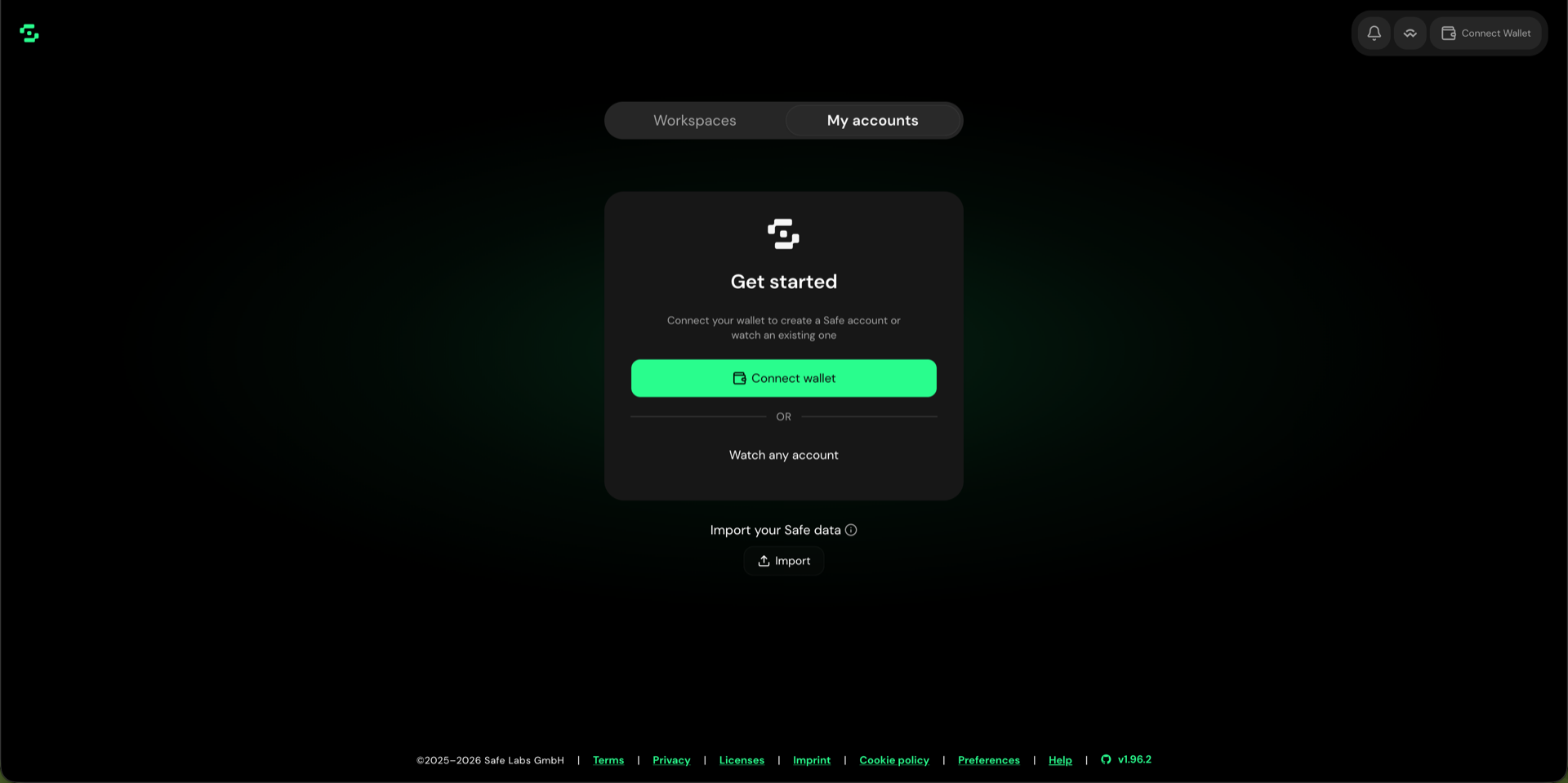
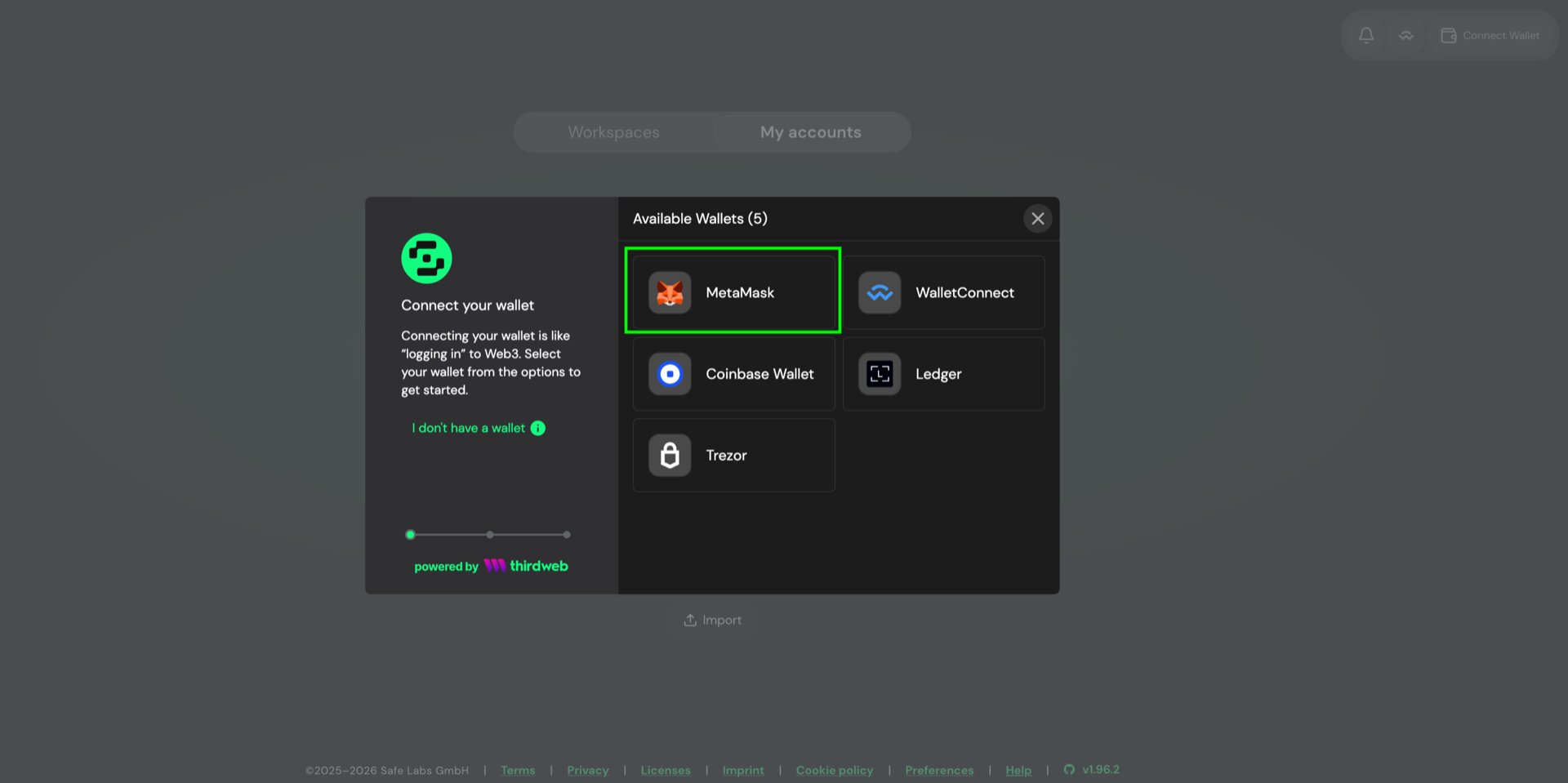
Step 2: Click Connect wallet and pick MetaMask. The dialog only lists wallets it detects, so install the extension first if you do not see the one you want—Kaia Wallet appears here once its extension is installed. Ensure Kaia Mainnet or Kairos Testnet is selected in your wallet and in Safe Wallet.
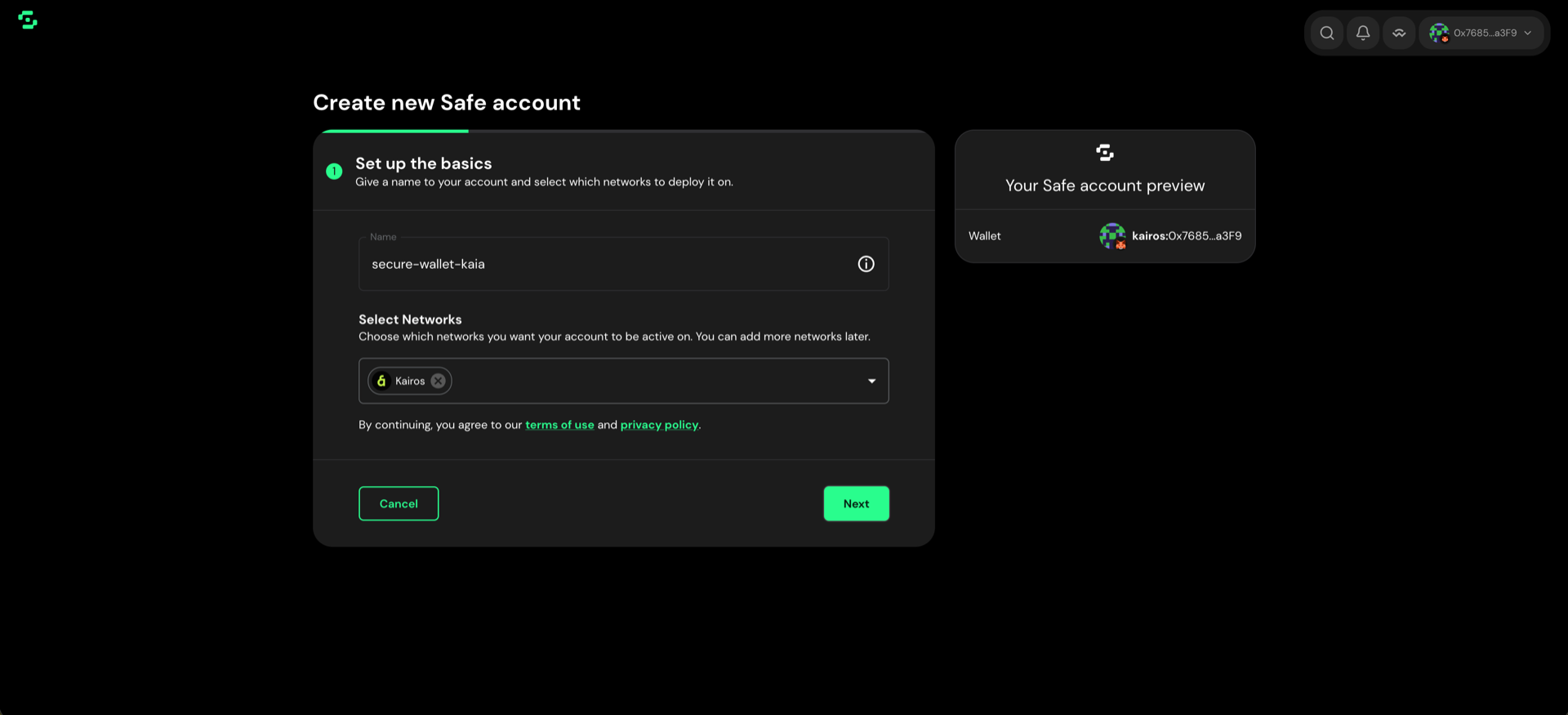
Step 3: Click Create account, name your Safe, then choose the networks to deploy it on—Kaia for Mainnet or Kairos for testnet. You can add more networks later. Click Next.
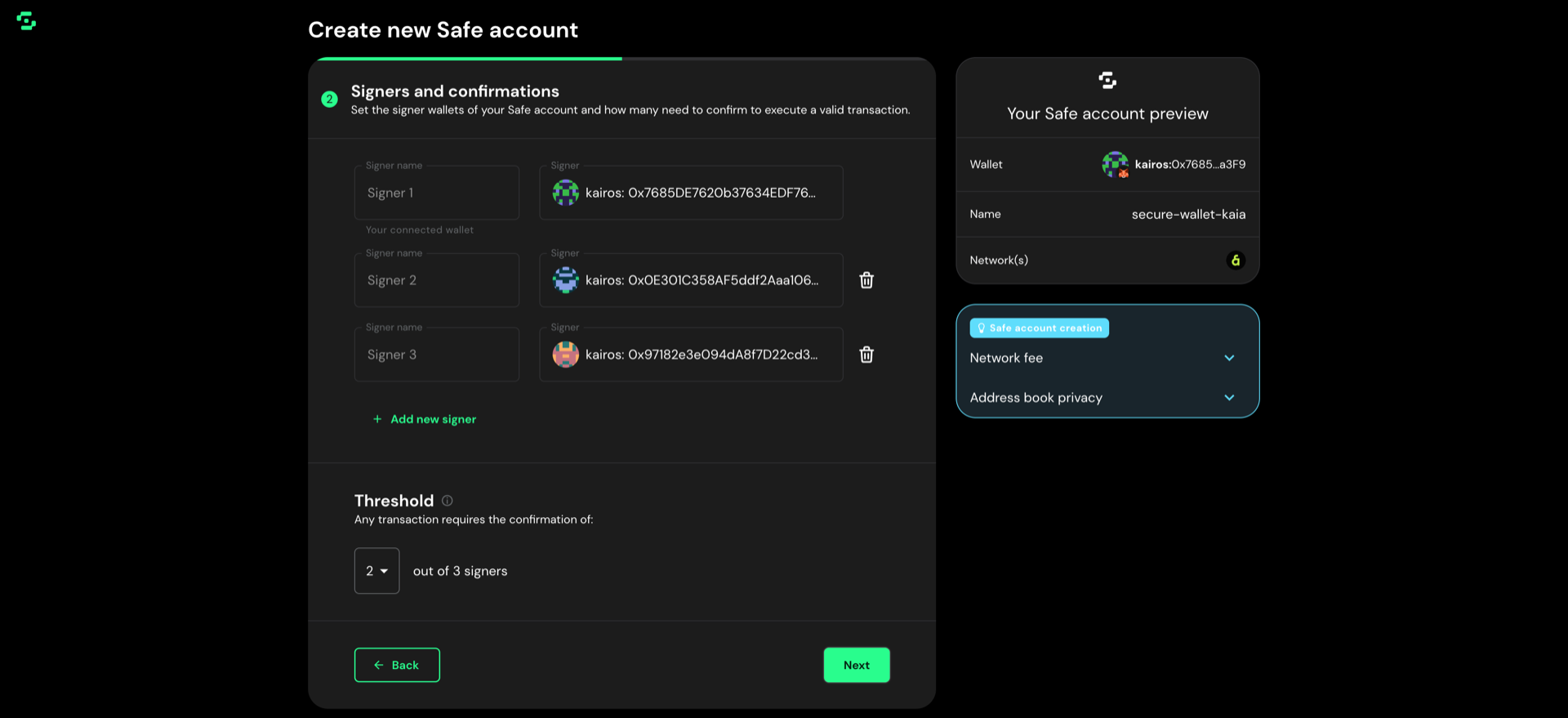
Step 4: On Signers and confirmations, add the addresses allowed to propose and approve transactions. Your connected wallet is Signer 1; click Add new signer for each additional one. Names are optional labels stored for your own reference. You can change signers later.
Step 5: Set the Threshold—how many signers must confirm before a transaction executes. Prefer more than 1. A common practice is about 51% of signers (for example 2 of 3, or 3 of 5). Click Next.
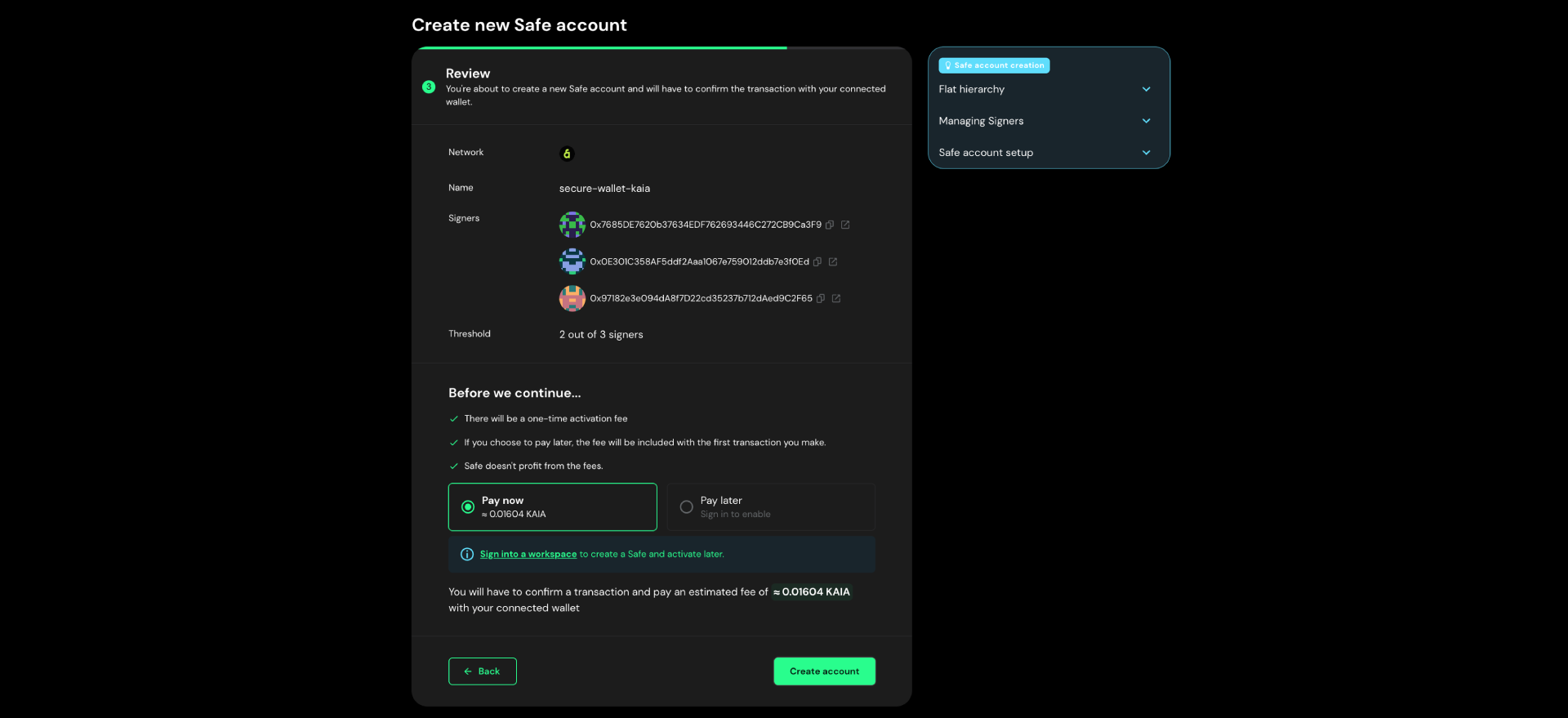
Step 6: Check the network, name, signers, and threshold. Deploying a Safe is an on-chain transaction, so it costs a one-time activation fee in KAIA—make sure your connected wallet holds enough. Click Create account, then confirm the transaction in your wallet.
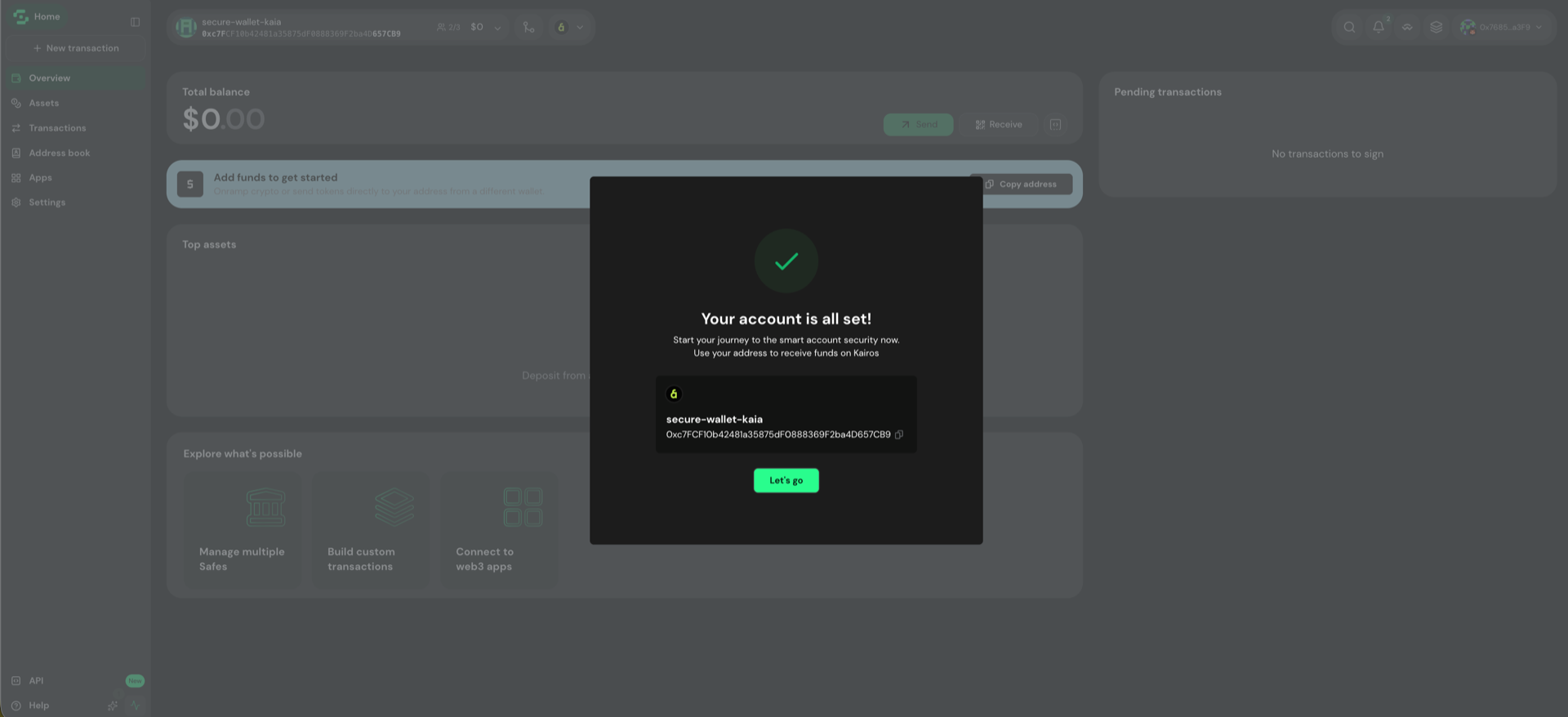
Step 7: Once the transaction confirms, your Safe is live. The dialog shows its address—this is the address you share to receive funds, and it is different from your signer wallet address. Click Let's go to open the account.
The account opens on Overview, with the sidebar for Assets, Transactions, Address book, Apps, and Settings. The Safe starts empty—use Copy address to fund it from another wallet.
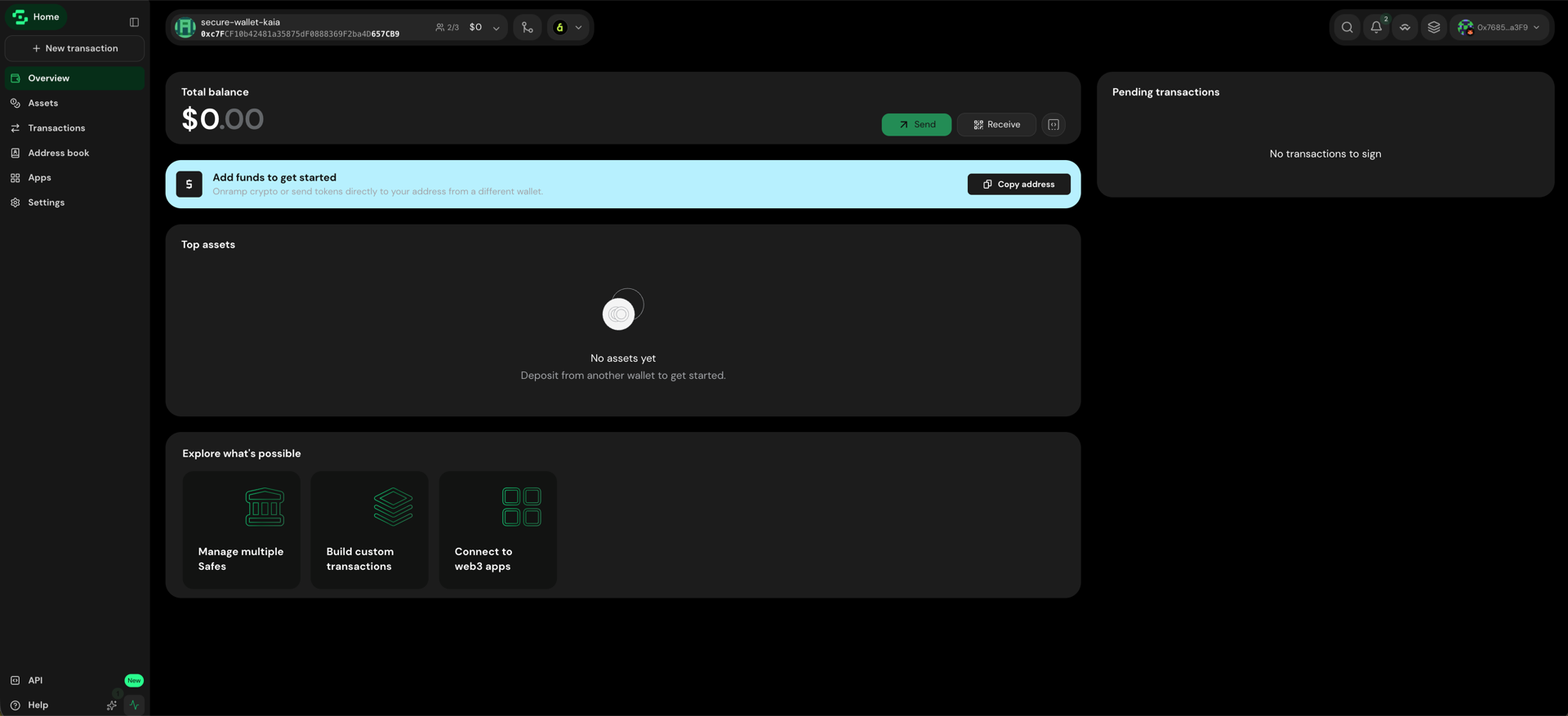
Your Safe account is ready.
Add assets
You can fund a Safe by sending KAIA, fungible tokens, or NFTs to the Safe address shown in the account dashboard.
KAIA deposits
- Copy your Safe address from the account dashboard.
- From a wallet (for example MetaMask, a hardware wallet, or another funded account), send KAIA to that address.
- When the transfer confirms, the balance appears under Assets in Safe Wallet.
You can fund the Safe from any address that can transfer to Kaia accounts. For network setup in MetaMask, see Connect MetaMask to Kaia.
Fungible token deposits
- Copy your Safe address.
- In your wallet’s token list, select the token and send it to the Safe address.
- Confirm the transfer and verify the balance under Assets in Safe Wallet.
NFT deposits
- Copy your Safe address.
- In the wallet that holds the NFT, open it and choose transfer.
- Paste the Safe address, confirm, and verify it under Assets → NFTs in Safe Wallet.
On Mainnet you can also transfer from a marketplace that supports Kaia, such as the OKX NFT Marketplace. On Kairos, use the wallet transfer above.
Send assets
Send KAIA and tokens
Step 1: Click New transaction and select Send tokens.
Step 2: Enter the recipient address, then pick the token and amount—MAX fills in the full balance. You can add up to five recipients to one transaction. Click Next.
Step 3: Review the details and click Sign, then confirm in your wallet. Signing does not send the transaction—it stays in the queue under Transactions until the threshold is met, then any signer can execute it.
Send NFTs
- Click New transaction and select Send NFTs (or the equivalent NFT transfer flow in Safe Wallet).
- Choose the NFT and recipient.
- Review, collect the required signatures, and execute.
For UI details that change over time, see the Safe Wallet Help Center.
Further notes
Transaction fees
Safe transactions (asset transfers or contract interactions) incur a network fee paid by the owner that executes the transaction (typically the last signer to reach the threshold).
Safe nonce
For security, Safe transactions must be executed in order. Each transaction has a nonce. Only the transaction with nonce last executed + 1 can be executed; higher nonces remain queued until earlier ones complete and enough signatures are collected.
Chain-specific address prefixes
When copying a Safe address from the dashboard, avoid including a chain name prefix if your destination wallet does not accept it—paste the bare address to prevent transfer errors.